How to standardise client charts of accounts with a template
Last updated 4 November 2026
Keep a model chart of accounts for your firm, compare any client ledger against it, and fix the differences from a list. How chart of accounts templates work in Report Craft.
Every firm has a chart of accounts it likes, and hardly any client has it. New ledgers arrive with their own names and codes, the reports read differently from one client to the next, and tidying one up by hand means holding two lists side by side. A template puts your model chart inside Report Craft and turns that comparison into a to-do list.
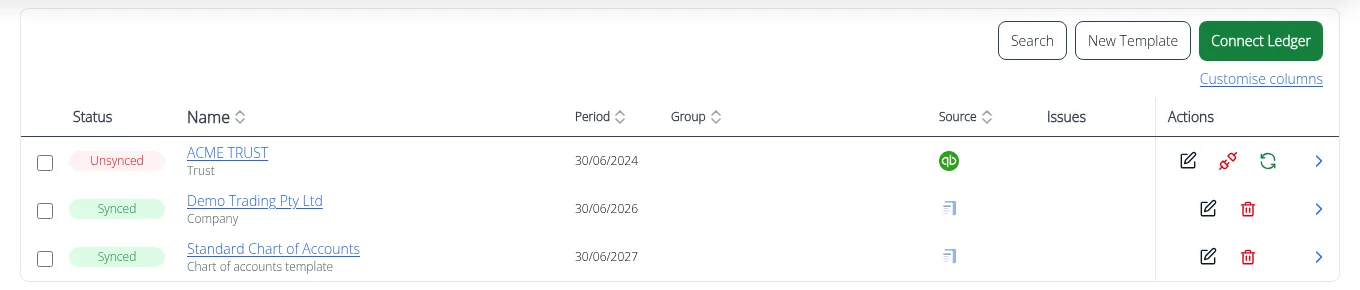
Create your template
- On Client Ledgers, click New Template and name it. You can keep several, for example one for trading companies and one for trusts.
- Add your accounts to its chart, with their codes, names and types.
- That's all. A template holds no figures and is not a client ledger, so it adds nothing to your bill.
Compare a client against it
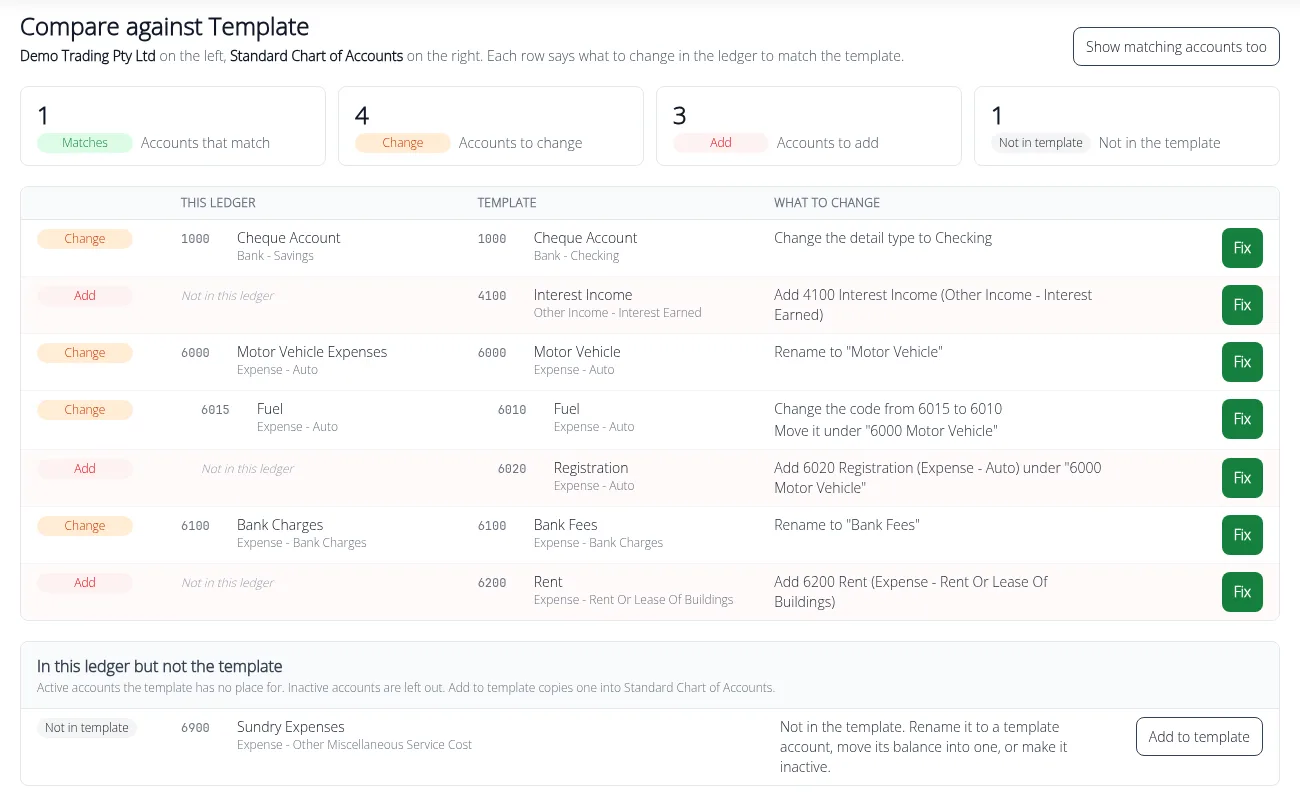
On any ledger's page, click Compare against Template. Report Craft pairs each account with the template, by code and name, then by name, then by code, and marks each row:
- Matches - nothing to do.
- Change - the name, code, type or parent differs from the template.
- Add - the template has it and the ledger doesn't.
- Not in template - the ledger has an account the template doesn't.
Fix it from the list
You work down the list instead of holding it in your head. On a QuickBooks or Xero ledger, Fix on a Change row sends the new code, name and type to the ledger, so the change is made in the accounting package too. On QuickBooks, Fix on an Add row creates the missing account there as well. On a ledger imported from a spreadsheet, the change is made in Report Craft. On MYOB, and for an account a Xero ledger is missing, you make the change in the package itself, with the list as your guide.
If a client's account is one you want every client to have, click Add to template and the template learns it. Nothing is applied until you click, so you decide what changes.
Why it pays off
- Reports read the same across your whole client base, whichever package each client uses.
- New clients come up to your standard in one sitting rather than over several years.
- Consolidations are quicker, because member ledgers already line up. See consolidating across packages.
Watch it in the chart of accounts templates video.
Try it on your own clients
Connect a QuickBooks, Xero or MYOB ledger, or import a spreadsheet, and have a full report pack in minutes. Free for 14 days.
Related guides
How to post a journal from the report you are reading
Post a journal from the report you are reading on a QuickBooks or MYOB ledger, watch the figures move, and take it back if you change your mind.
How to check loans between associated entities agree
Check a loans account against the other entity's ledger and see what's out and by how much, before it reaches the accounts.
How to consolidate financial statements across QuickBooks and Xero
Combine client ledgers from both accounting packages into one group and produce a single set of consolidated financial statements.
Intercompany eliminations in consolidated accounts, explained
Why intercompany balances have to be removed on consolidation - and how to post the elimination journals that do it.
Consolidating a trust group: a practical guide for accountants
Trust groups add distributions and appropriations to the mix - here's how to consolidate them cleanly.