How to give clients a secure portal for their financial statements
Last updated 4 November 2026
Stop emailing PDFs back and forth. How accounting firms can give each client a read-only portal onto their finalised financial statements, with Report Craft.
Every year the same thing happens. The accounts go out as an email attachment, and a few months later the client's bank asks for them and the client asks you. Report Craft's Client Portal ends that loop: each client gets their own read-only window onto the years you have finalised, on any device, whenever they need it.
What your client sees
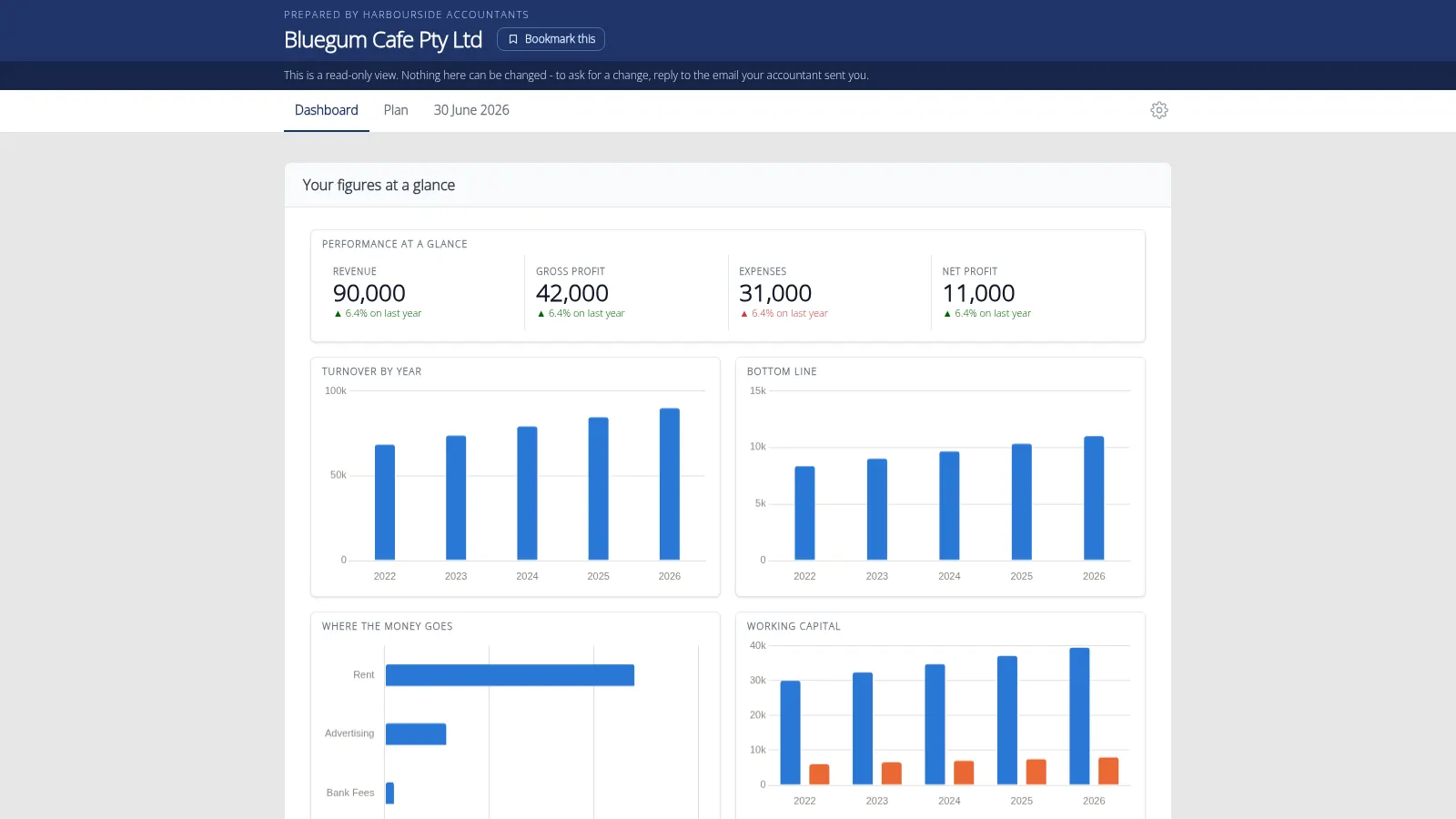
A client opens the portal with a link and reports are waiting for them: a tab for each finalised year, holding a full set of statements - front cover, Profit & Loss, Appropriation, Balance Sheet, Cash Flow, Detailed Accounts and Tax Schedule - to read on screen or download as a PDF. There is also a Dashboard tab, and a Plan tab if you have agreed a plan with them. They can look, but they cannot change a figure.
Setting up a portal
- Open the ledger and go to Client Ledger Settings, then Client Portal.
- Click Create the portal.
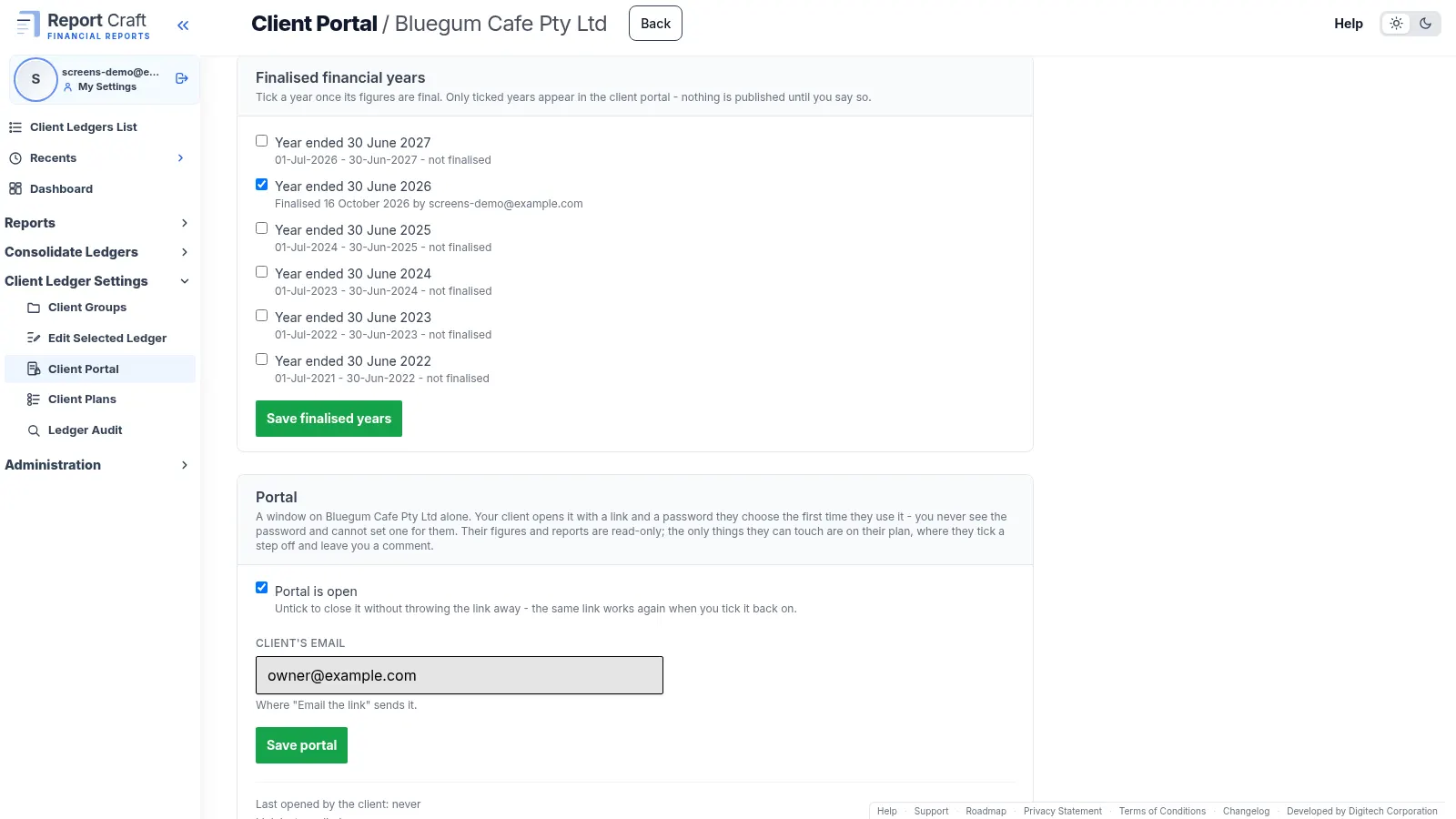
- Finalise a year. Tick the year ended and choose Save finalised years. Only years you tick ever reach the client, so a year you are still working on stays with you.
- Send it. Choose Copy link, or Email the link to send it to the client's address.
Who can get in
The first time they open the link, your client chooses a password that only they know. Your firm can neither see it nor set it. A client who forgets it resets it by email, changes it from the cog in the portal, and can bookmark the link to get back quickly. A client who would rather not have a password can agree to keep the link safe instead, and set one later.
You stay in control
- Untick a year and it leaves the portal straight away.
- Close the portal to shut it for now. Open it again and the same link still works.
- Regenerate the link to replace it, or Revoke it to lock the client out at once.
- Reset the password from the portal screen, which also tells you whether the client has one yet.
What it costs
Nothing extra. A client using their portal is not a user on your account, and Report Craft bills per client ledger, so giving every client a portal does not change your bill.
Next, read how to agree a plan with your client in the same portal, or watch the client portal how-to video.
Try it on your own clients
Connect a QuickBooks, Xero or MYOB ledger, or import a spreadsheet, and have a full report pack in minutes. Free for 14 days.
Related guides
How to agree a plan with a client and follow it through
Set out the steps you agreed, keep meeting notes against each, and let your client tick them off in their portal.
How to plan client visits with a map of your client base
See every client pinned by address, pick the ones to visit and get a sensibly ordered route, ready for Google Maps.
How to consolidate financial statements across QuickBooks and Xero
Combine client ledgers from both accounting packages into one group and produce a single set of consolidated financial statements.
Intercompany eliminations in consolidated accounts, explained
Why intercompany balances have to be removed on consolidation - and how to post the elimination journals that do it.
Consolidating a trust group: a practical guide for accountants
Trust groups add distributions and appropriations to the mix - here's how to consolidate them cleanly.