How to plan client visits with a map of your client base
Last updated 4 November 2026
See every client on a map and plan the day's visits in a sensible order, ready to open in Google Maps. How the client map and route planner work in Report Craft.
Visiting clients is good for business and bad for a calendar. Working out who is near whom, and in what order to see them, usually means a lot of tab switching. Report Craft already knows where your clients are, so it can show you, and put a day's visits into a sensible order.
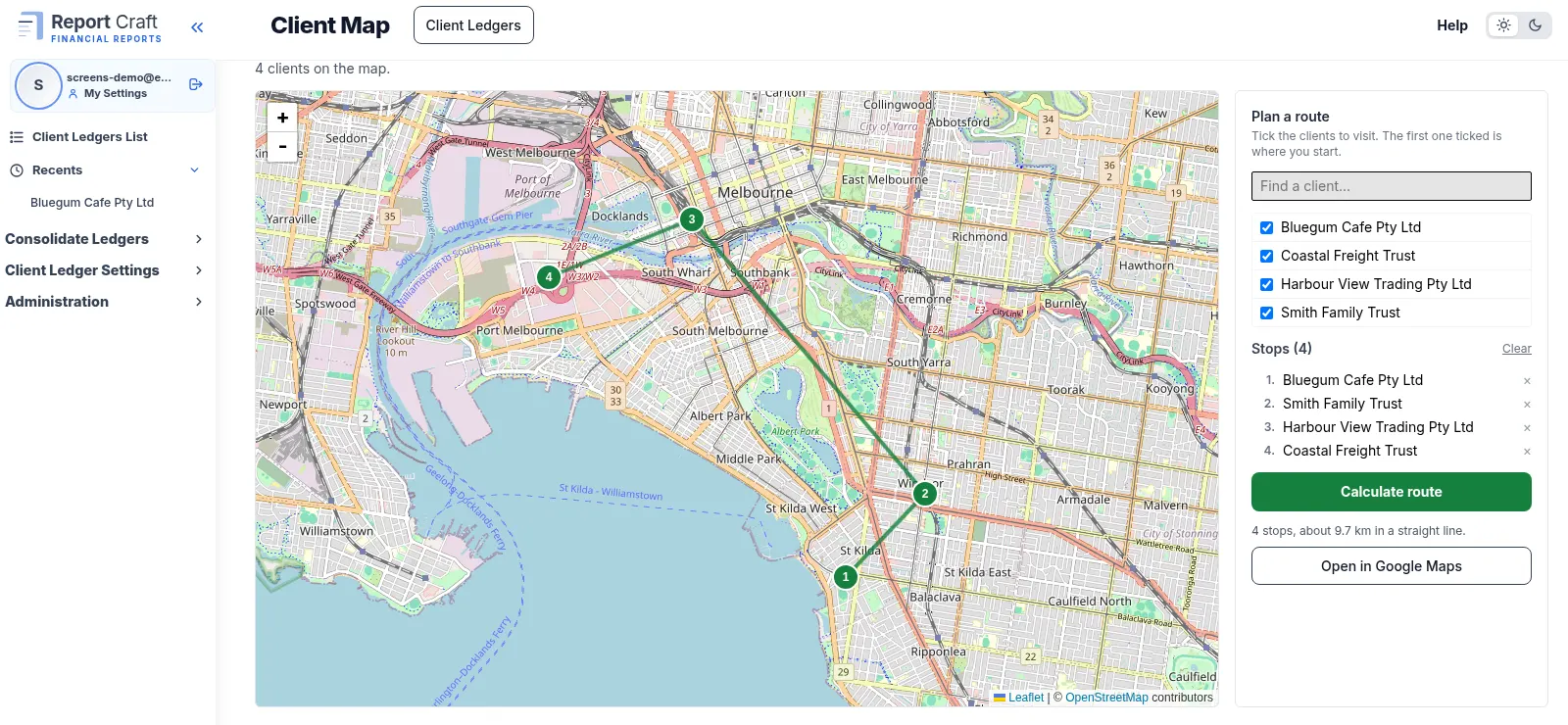
Your clients on a map
On Client Ledgers, click the globe icon to open the client map. Each client is pinned by the address in their QuickBooks, Xero or MYOB file, or the one you entered on the ledger form. The address refreshes along with the ledger, so a client who moves in their books moves on the map after the next refresh.
Planning a route
- Under Plan a route, use Find a client or tick clients in the list, or choose Add to route on a pin. The first client you tick is where the route starts.
- Click Calculate route. You need at least two stops, and can have up to 200.
- Click Open in Google Maps to take the route with you. A long route splits into several links of up to 11 stops each.
Good to know
The order is worked out from straight-line distance between clients, not road distance, and it doesn't assume you return to where you started. It is a quick, sensible order to work from, and Google Maps takes it from there with live directions.
Make the visit count
Before you go, open the client's Dashboard to see how they are tracking, and their plan to see what you agreed last time. That turns a courtesy call into the conversation that keeps a client for years.
The Report Craft overview video shows the map in action.
Try it on your own clients
Connect a QuickBooks, Xero or MYOB ledger, or import a spreadsheet, and have a full report pack in minutes. Free for 14 days.
Related guides
How to give clients a secure portal for their financial statements
Give each client a read-only window onto their finalised years, on screen or as a PDF, behind a link and a password they choose.
How to agree a plan with a client and follow it through
Set out the steps you agreed, keep meeting notes against each, and let your client tick them off in their portal.
How to consolidate financial statements across QuickBooks and Xero
Combine client ledgers from both accounting packages into one group and produce a single set of consolidated financial statements.
Intercompany eliminations in consolidated accounts, explained
Why intercompany balances have to be removed on consolidation - and how to post the elimination journals that do it.
Consolidating a trust group: a practical guide for accountants
Trust groups add distributions and appropriations to the mix - here's how to consolidate them cleanly.